Gateways Overview
Route traffic to your containers with managed HTTP/HTTPS gateways.
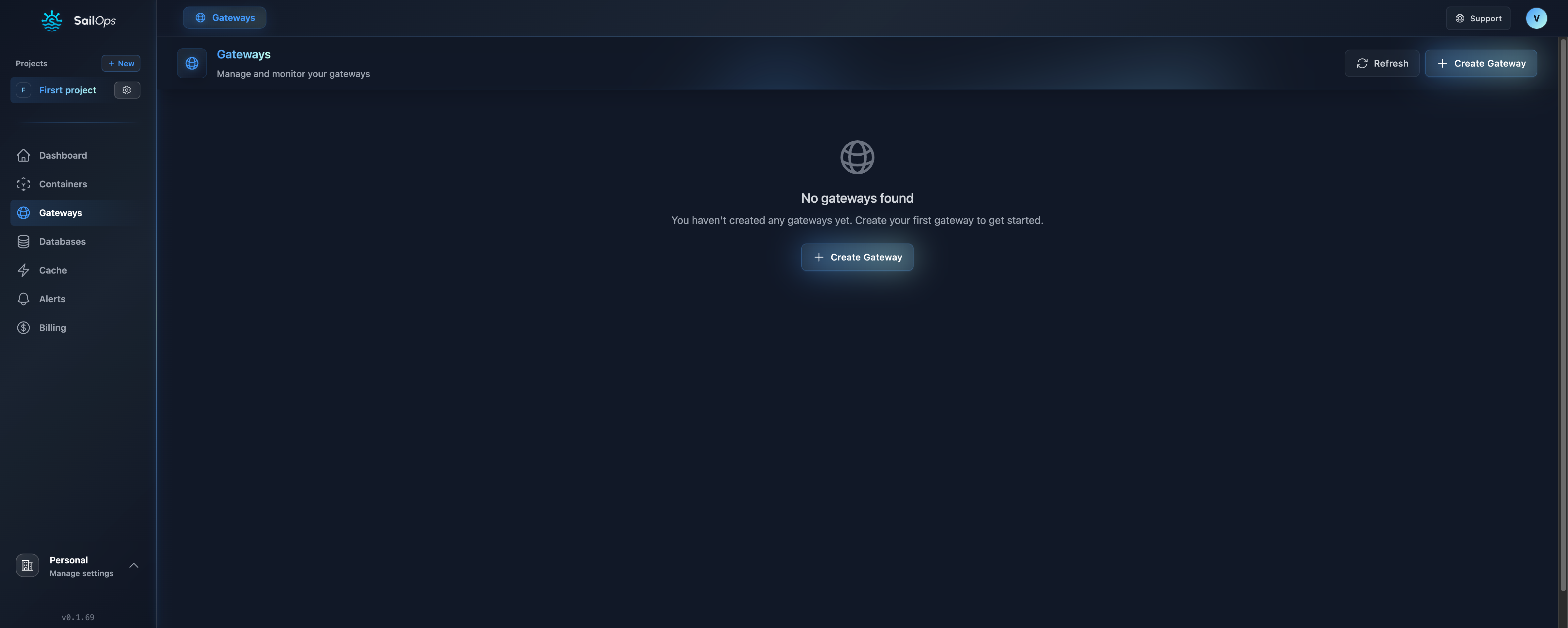
What are Gateways?
Gateways are the entry points for external traffic to reach your containers. SailOps provides fully managed gateways with:
- Automatic HTTPS - SSL certificates provisioned and renewed automatically
- Custom domains - Use your own domain names
- Path-based routing - Route different paths to different containers
- Load balancing - Distribute traffic across container instances
- Zero configuration - Works out of the box
Key Features
Automatic SSL/TLS
Every gateway comes with free SSL certificates:
- Automatic provisioning via Let's Encrypt
- Auto-renewal before expiration
- A+ SSL Labs rating
- TLS 1.3 support
Custom Domains
Use your own domains with minimal setup:
- Add your domain to the gateway
- Configure DNS (A record pointing to gateway IP)
- Certificate is automatically provisioned
- Your app is live on your domain
Custom Domains Required
SailOps gateways require you to configure your own domain. When creating a gateway listener, you must provide:
- A hostname (e.g.,
api.yourcompany.com) - DNS configuration pointing to the gateway
- SSL certificates are automatically provisioned
Unlike some platforms, SailOps does not provide default subdomains like *.sailops.app. This approach gives you full control over your branding and DNS configuration from day one.
Path-Based Routing
Route different paths to different containers:
example.com/          → frontend container
example.com/api       → api container
example.com/admin     → admin container
example.com/static    → cdn container
Traffic Management
Gateways handle container traffic automatically:
- Automatic traffic routing around unhealthy instances
- Graceful handling of container updates
Architecture
Gateway Types
HTTP Gateway
Standard web traffic gateway:
- HTTP/1.1 and HTTP/2 support
- WebSocket connections: one successful HTTP 101 request per session, without an upstream response time sample
- Server-Sent Events (SSE)
- Request/response streaming
TCP Gateway
For non-HTTP protocols:
- Database connections (e.g., Valkey/Redis cache)
- Custom protocols
- Raw TCP streams
TCP Gateways use TCPRoute resources to route traffic based on port/listener configuration.
Quick Start
1. Create a Gateway
# Navigate to your project
Dashboard → Gateways → Create Gateway
2. Add a Route
Connect the gateway to your container:
| Field | Example |
|---|---|
| Path | / |
| Container | frontend |
| Port | 3000 |
3. Access Your App
Once DNS is configured and the SSL certificate is provisioned, your app is available at your custom domain:
https://your-custom-domain.com
Common Use Cases
Single Container App
Gateway: my-app
├── Route: / → my-app-container:3000
└── Domain: myapp.com
Microservices Architecture
Gateway: api-gateway
├── Route: /           → web:80
├── Route: /api        → api:8080
├── Route: /ws         → websocket:3001
└── Route: /graphql    → graphql:4000
Multi-Environment Setup
Production:  app.example.com       → prod-frontend
Staging:     staging.example.com   → staging-frontend
Development: dev.example.com       → dev-frontend
Gateway Classes
Choose the gateway class based on your bandwidth requirements:
| Class | Bandwidth | Best For |
|---|---|---|
| gw-small | 200 Mbps | Development, small applications |
| gw-medium | 500 Mbps | Medium traffic applications |
| gw-large | 1 Gbps | High-traffic production |
| gw-xlarge | 4 Gbps | Enterprise, very high traffic |
- Start with gw-small for development and testing
- Use gw-medium for most production applications
- Choose gw-large or gw-xlarge for high-traffic or media-heavy applications
Pricing
Gateways are billed per-hour based on the selected class:
| Feature | Included |
|---|---|
| Custom domains | Unlimited |
| SSL certificates | Free (automatic) |
| Gateway compute | Per class (see table above) |
See Billing for detailed pricing.
Limits
| Resource | Limit |
|---|---|
| Gateways per project | 50 |
| Routes per gateway | 100 |
| Domains per gateway | 20 |
| Max request body | 100 MB |
| Request timeout | 300 seconds |
Best Practices
1. Set Up Custom Domains Early
Custom domains take time to propagate. Set them up before going live.
2. Use Path Prefixes Wisely
Keep routing simple:
/api/*for backend services/for frontend/static/*for assets
3. Monitor Your Traffic
Use the dashboard to monitor:
- Request rates
- Error rates
- Upstream response time
Gateway Detail Tabs
When viewing a gateway, you'll find 5 tabs:
| Tab | Description |
|---|---|
| Overview | General information, status, and IP address |
| Domains | Manage custom domains and SSL certificates |
| Routes | Configure traffic routing rules |
| Policies | Traffic management and security policies |
| Observability | Gateway metrics and monitoring |