Organization Overview
Organizations are the top-level entity for managing your SailOps resources.
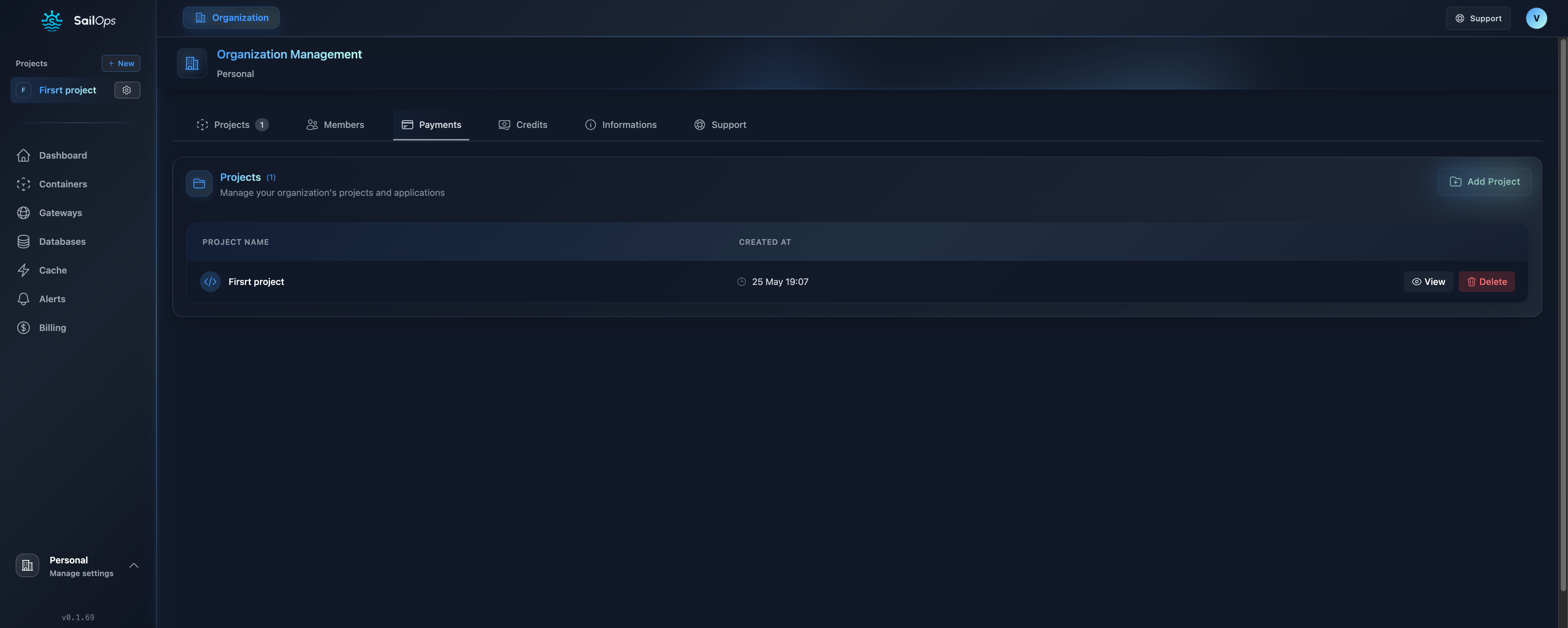
What is an Organization?
An organization in SailOps is:
- The billing entity - All costs are billed to the organization
- The security boundary - Members only access their organizations
- The resource container - Projects and resources belong to organizations
Organization Structure
Creating an Organization
When you first sign up, SailOps takes you to the Welcome page where you can start a free trial or create a paid organization. You can also create additional organizations at any time from this page:
- Click your organization name at the bottom left of the sidebar
- Select Manage organizations to open the organization hub
- Under Join or create, expand the trial or paid option
- Enter the organization name and accept the current terms of service
Organization Name
Choose a descriptive name:
✓ Acme Corporation
✓ MyStartup
✓ Personal Projects

✗ test123 (not descriptive)
✗ asdf (not meaningful)
The name appears on:
- Dashboard
- Invoices
- Team invitations
Organization Settings
The organization settings page has 9 tabs:
| Tab | Description |
|---|---|
| Projects | All projects with status and management |
| Members | Team members and role assignments |
| Payments | Payment methods and billing |
| Credits | Credits balance and history |
| Spending | Organization spending breakdown by project |
| Information | Organization details (company name, VAT, address) |
| Support | Support plan and help resources |
| Advanced | Archive organization |
| Terms | Terms of service acceptance and history |
Managing Organizations
Accessing Settings
- Click your organization name at the bottom left of the sidebar
- Select Settings
Information Tab
The Information tab contains:
| Setting | Description |
|---|---|
| Company Name | Organization display name |
| Registration Number | Business registration (e.g., SIRET for France) |
| VAT Number | VAT identification number (optional) |
| Billing Email | Email for billing communications |
| Billing Address | Full address for invoices |
Organization type (Personal or Enterprise) is set during registration and cannot be changed.
Advanced tab
The Advanced tab contains critical operations:
- Archive organization — Permanently archive the organization. All projects must be deleted first. Archived organizations can no longer create or modify resources, but billing history and member access are preserved. After archiving, you are redirected to the organization hub with the archives list open.
Archiving an organization is a terminal action. You must delete all projects before you can archive.
Multiple Organizations
SailOps fully supports multi-organization management. Every user can create and belong to multiple organizations, each with its own billing, members, and projects.
When to Use Multiple Organizations
Consider separate organizations for:
- Different companies - Separate billing entities
- Client work - Isolate client resources
- Personal vs work - Keep projects separate
URL-Based Routing
Organization and project selection is reflected in the URL. This means you can bookmark or share direct links to specific organizations and projects, and your current context is preserved across browser refreshes.
https://app.sailops.io/{org-slug}/{project-slug}/containers
Switching Organizations
- Click your organization name in the sidebar
- Select an organization from the dropdown, or click Manage organizations to open the hub
- The URL updates and the view switches to the new organization
The organization hub lists your organizations with their role, project count, and trial status. It shows your most recent organizations first and offers a search when you belong to six or more. You can also browse all organizations or archives from there.
Platform administrators see every organization on the hub, not only those they belong to. Organizations the administrator is not a member of are labeled Not a member.
Creating Additional Organizations
- Open the organization hub (sidebar > Manage organizations, or navigate to
/welcome) - Under Join or create, expand the trial or paid option
- Enter a name, accept the terms of service, and confirm
Trial, Suspension, and Archival
New organizations start with a free trial. During the trial, you can explore platform features within trial resource limits.
Trial expiry
When a trial expires (credits exhausted or time period ended), the organization is suspended immediately. All workloads are stopped and the organization is read-only. Your data is preserved for 30 days. After 30 days, the organization is archived and all projects are permanently deleted.
Payment failure
When payment issues occur on a paid organization, a separate dunning lifecycle applies:
- Restricted — New resource creation is disabled
- Blocked — All mutations are disabled, workloads are suspended
- Archived — Terminal state; projects are marked for deletion
You can resolve billing issues at any stage to restore the organization to active status.
See Projects for details on project deletion and restore behavior.
Organization Limits
Standard Limits
| Resource | Limit |
|---|---|
| Projects | 50 |
| Members | 25 |
| API Keys | 100 |
Custom Plan Limits
Contact sales for:
- Unlimited projects
- Unlimited members
- Custom limits
Best Practices
1. Use Descriptive Names
✓ Acme Corp - Production
✓ Client: BigCo
✓ Personal Projects

✗ org1
✗ test
2. Set Up Billing Early
- Add payment method
- Set up billing alerts
- Configure billing emails
3. Define Member Roles
- Limit owner count
- Use appropriate roles
- Regular access reviews
4. Organize Projects Logically
✓ By environment: prod, staging, dev
✓ By product: app, api, docs
✓ By team: frontend, backend, data

✗ Random naming
✗ No clear structure