Database Backups
Automated backups with recovery options for PostgreSQL and MariaDB databases.
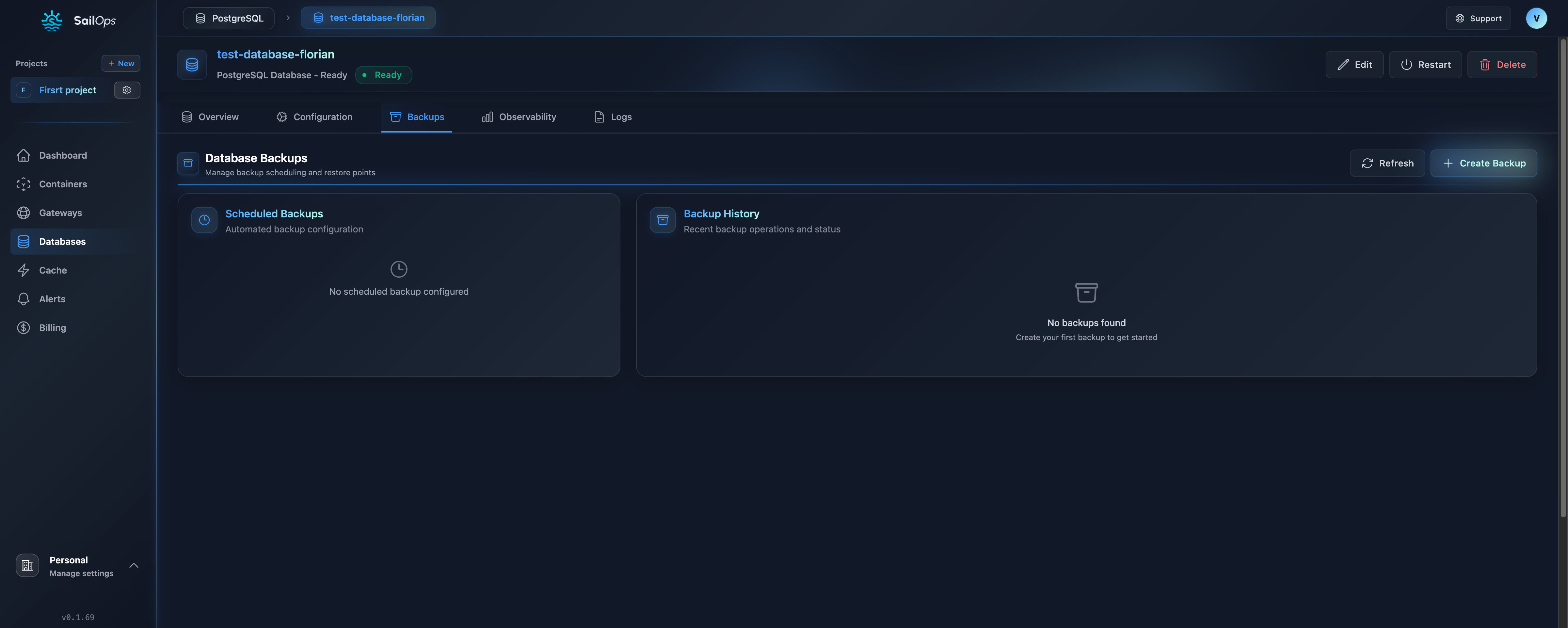
PostgreSQL Backups
Backup Features
SailOps provides comprehensive backup protection for PostgreSQL:
- Automated daily backups - No manual intervention required
- On-demand backups - Create a restore point before a risky operation
- Managed retention - Completed backups are retained for up to 30 days
- Encrypted UI downloads - AES-256 ZIP encryption with a one-time password
How Backups Work
Daily Base Backups
- A physical CloudNativePG base backup is taken daily
- Retained per your retention policy
- Restores use a specific completed backup as their restore point
Continuous WAL archiving is not enabled, so arbitrary timestamp recovery between backups is not available.
Retention Policies
Backups are automatically retained for up to 30 days:
| Retention | Available restore points |
|---|---|
| Up to 30 days | Completed backups retained during that period |
Viewing Backups
- Navigate to your database
- Click the Backups tab
- View available backups and restore points
Backup Information
| Field | Description |
|---|---|
| Date | When the backup was created |
| Size | Compressed backup size |
| Type | Scheduled, Manual, or Automatic |
| Status | Pending, Running, Completed, Failed |
Restoring from Backup
PostgreSQL restore always creates a new database cluster — your existing database is never modified.
Completed backups can be downloaded as AES-256 encrypted ZIP files. An encryption password is generated and shown once — save it immediately as it cannot be retrieved later.
Backup Restore
Restore a specific backup to a new database cluster:
- Go to Backups tab
- Find the backup you want to restore
- Click Restore
- Enter a new cluster name using lowercase letters, numbers, and hyphens
- Click Restore
The selected completed backup is resolved to its exact Barman recovery ID; the service does not silently substitute the latest backup. The restored database appears immediately as a provisioning database in your project, and the durable operation resumes automatically if UserAPI restarts.
Roles and extensions are part of PostgreSQL physical recovery and cannot be excluded. SailOps copies the current managed-role credentials into target-owned Secrets, then CloudNativePG reconciles those credentials on the restored cluster. Public access and connection pooling are not copied; configure them explicitly after the target is ready. The source database cannot be deleted while an accepted restore still depends on its backup data.
- Recover from accidental data deletion
- Restore a backup created before a problematic deployment
- Create a snapshot for testing
Manual Backups
Create an on-demand backup from the UI:
- Go to Backups tab
- Click Create Backup
- Wait for completion
Downloading Backups
Download completed backups directly from the UI:
- Go to Backups tab
- Find a completed backup
- Click the download icon
- The backup downloads as an AES-256 encrypted ZIP file (
.enc.zip) - An encryption password is displayed in a modal — save it immediately
- The password cannot be retrieved later and the modal auto-dismisses after 5 minutes
To decrypt the downloaded backup:
- Use any ZIP tool that supports AES-256 encryption
- Enter the provided password when prompted
The downloaded file contains a physical CloudNativePG/barman base-backup
archive, not a SQL dump. After decryption, its entry is named
backup-<id>-data.tar with the source compression suffix when present (for
example .gz), so its physical format is explicit. It does not include the WAL segments and metadata
needed for a standalone restore and cannot be imported with psql. Use
pg_dump yourself when you need a portable logical export.
Backups can also be managed via the Public API (list, create, get, download). The Public API download returns the raw physical archive through a presigned URL; it is not the AES-encrypted ZIP produced by the Dashboard download.
MariaDB Backups
Automated Backups
MariaDB databases are backed up automatically on a configurable cron schedule. The default schedule is 0 2 * * * (daily at 2 AM). Backups are stored on S3-compatible backup storage.
Retention
MariaDB backups are retained for up to 30 days.
On-Demand Backups
Create a manual backup at any time:
- Navigate to your MariaDB database
- Click the Backups tab
- Click Create Backup
- Wait for completion
Restoring from Backup
MariaDB restore is an in-place restore — it overwrites the current data in your existing database. This is different from PostgreSQL, which restores to a new cluster.
Completed backups can be downloaded as AES-256 encrypted ZIP files. An encryption password is generated and shown once — save it immediately as it cannot be retrieved later.
To restore a MariaDB backup:
- Go to Backups tab
- Find the backup you want to restore
- Click Restore
- Type the database name to confirm the operation
- Click Confirm Restore
Downloading Backups
Download completed MariaDB backups directly from the UI:
- Go to Backups tab
- Find a completed backup
- Click the download icon
- The backup downloads as an AES-256 encrypted ZIP file (
.enc.zip) - An encryption password is displayed in a modal — save it immediately
- The password cannot be retrieved later and the modal auto-dismisses after 5 minutes
To decrypt the downloaded backup:
- Use any ZIP tool that supports AES-256 encryption
- Enter the provided password when prompted
Backups can also be managed via the Public API (list, create, get, download).
Backup Best Practices
Test Your Backups
Regularly verify backups work:
- Perform a test restore monthly
- Verify data integrity
- Document the process
- For PostgreSQL, delete test database clusters when done
Know Your RPO/RTO
| Metric | Description | SailOps Default |
|---|---|---|
| RPO (Recovery Point Objective) | Max data loss | Time since the selected completed backup |
| RTO (Recovery Time Objective) | Time to recover | Depends on database size and cluster provisioning |
Additional Protection
For critical data, consider:
- Portable logical exports with
pg_dumpfor PostgreSQL - Application-level backups for business-critical data
Disaster Recovery
Scenarios Covered
PostgreSQL
| Scenario | Recovery Method | Time |
|---|---|---|
| Accidental deletion | Restore a completed backup to a new cluster | Depends on backup size |
| Data corruption | Restore an earlier completed backup to a new cluster | Depends on backup size |
| Instance failure | Auto-failover (HA) | < 30 sec |
| Zone failure | Restore from a completed backup | Depends on backup size and provisioning |
MariaDB
| Scenario | Recovery Method | Time |
|---|---|---|
| Data loss | Restore from backup (in-place) | 5-15 min |
| Instance failure | Auto-failover (Galera) | < 30 sec |
| Zone failure | Restore from backup (in-place) | 10-30 min |
Recovery Process (PostgreSQL)
- Identify the issue — When did it occur?
- Choose a completed backup — Select the latest suitable restore point before the incident
- Restore to new database — A new cluster is created, production is untouched
- Verify data — Check data integrity on the new cluster
- Switch over — Update application to use restored database
- Clean up — Remove old database if appropriate
Recovery Process (MariaDB)
- Identify the issue — When did it occur?
- Select the backup — Choose the most recent backup before the incident
- Confirm the restore — Type the database name to confirm (in-place, destructive)
- Verify data — Check data integrity after restore
Backup Monitoring
Backup Status
Check backup health in your database dashboard:
- Last successful backup - Should be within 24 hours
- Backup size trend - Unusual changes may indicate issues
- Backup list - View all available backups
Compliance
Backup Encryption
Dashboard downloads are wrapped in an AES-256-encrypted ZIP and transferred over HTTPS. The raw Public API download is not wrapped in this encryption layer.
FAQ
How long do restores take?
Typically 5-30 minutes depending on database size.
Can I restore to a different project?
Not directly. Restore to the same project, then migrate data.
Are backups cross-region?
The storage location depends on the backup provider configured for the managed database. Do not assume that one backup is replicated across regions.
Can I download my backups?
Yes, you can download completed backups from the Backups tab. Downloaded backups are AES-256 encrypted ZIP files with a server-generated password shown once during download.
What happens if I delete my database?
Do not rely on managed backups remaining available after deleting the database cluster. Download or create a portable logical export before deletion when you need independent retention.
Troubleshooting
Backup Failed
- Check database health
- Verify storage space
- Review database logs
- Contact support if persists
Restore Taking Too Long
- Large databases take longer
- Check network conditions
- Contact support for status
Data Missing After Restore
- Verify that you selected the intended completed backup
- Compare the incident time with the backup creation time
- Try an earlier completed backup if the selected restore point already contains the unwanted change