API Keys
Create and manage API keys for programmatic access to SailOps.
Overview
API keys provide authenticated access to SailOps. Common uses include:
- Automating deployments via CI/CD pipelines
- Updating container images programmatically
- Configuring environment variables and files
- Managing infrastructure declaratively with the Stack Engine
- Connecting AI assistants via the MCP Server
Key subjects
Every API key belongs to one of three subjects, which decides what the key can reach:
| Subject | Managed in | Reach |
|---|---|---|
| Project | Project Settings > API Keys | Only the project it was created in. Never billing, members, invitations or keys themselves. |
| Organization | Organization Settings > API keys | Every project of the organization, with what a DEVELOPER holds there. Membership, invitations and the organization itself stay out of reach. |
| Personal | Account Settings > API keys | Whatever you reach at the moment of each request. Lose a role and the key loses it with you. Never platform administration, keys, billing changes or payments. |
The API (new) accepts all three. The Public API and the MCP Server accept only project keys — an organization or personal key receives a FORBIDDEN error there.
Managing project keys requires at least the Maintainer role on the project. Managing organization keys requires the Owner role on the organization.
Creating an API key
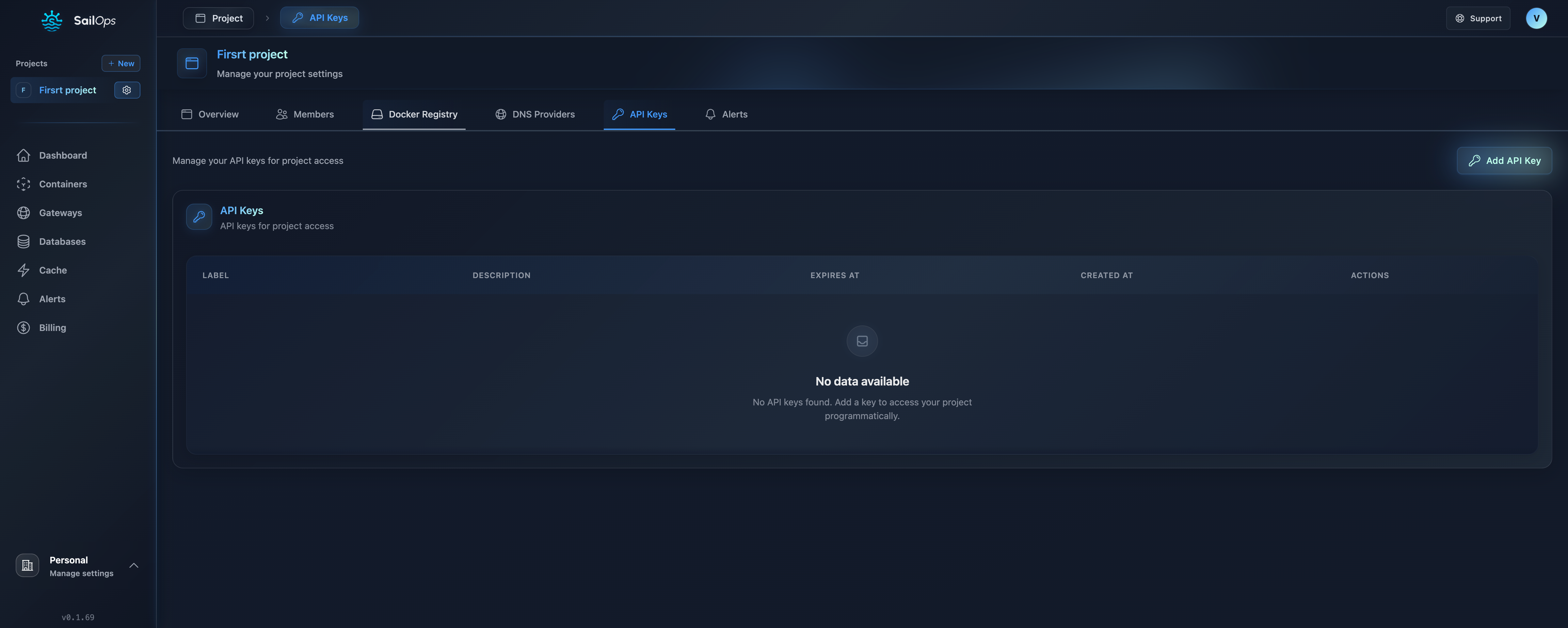
- Navigate to the key management page for the subject you want (project settings, organization settings, or account settings)
- Click Add API Key
- Configure the key:
- Label: Descriptive identifier (e.g., "my-api-key") — must be unique within the subject
- Description: Optional description (e.g., "Key for CI/CD pipeline")
- Expiration Date: Optional expiry date
- Permissions: Choose what the key can do (see Choosing permissions below)
- Click Create
- Copy the key immediately — it won't be shown again
The API key is only displayed once. Store it securely immediately after creation.
Choosing permissions
The permission picker shows two panes side by side: Available on the left and Selected on the right. Click a permission to move it across; use Add everything shown or Remove everything shown to move in bulk.
Presets let you start from a ready-made set instead of picking one by one. The available presets are:
| Preset | Description |
|---|---|
| Developer | Deploy and run everything in a project, without touching who belongs to it or who pays. |
| Maintainer | Everything a developer can do, plus people, keys and projects themselves. |
| Owner | Everything there is, the organization's own life included. |
| Accountant | The money and nothing else: invoices, payment methods, costs and usage. |
| Read-only | See everything, change nothing. |
A preset is capped at what you hold yourself — permissions you cannot give are counted and reported, not silently dropped. After applying a preset you can still add or remove individual permissions.
The search field matches permission names, descriptions and API paths. Type /billing to find every permission that touches a billing endpoint — useful when you know which API call you need to reach.
Leave permissions empty for the default set: the DEVELOPER expansion for organization and project keys, or your own access for a personal key.
Using API keys
Authentication
Include the API key in the X-Api-Key header:
curl -H "X-Api-Key: $SAILOPS_API_KEY" \
  https://app.sailops.io/api/public/api/v1/containers/my-container
Which API to use
| API | Base URL | Accepted keys |
|---|---|---|
| Public API | https://app.sailops.io/api/public/api/v1 | Project keys only |
| API (new) | https://app.sailops.io/api/v3 | Project, organization and personal keys |
See the Public API endpoint reference and the API (new) endpoint reference for the complete lists.
SailOps keys do not authenticate Grafana requests. Use a Grafana Service Account token for its API.
Common Examples
Update a container image (typical CI/CD use case):
curl -X PATCH \
  -H "X-Api-Key: $SAILOPS_API_KEY" \
  -H "Content-Type: application/json" \
  -d '{
    "image": "ghcr.io/myorg/api:v1.2.0"
  }' \
  https://app.sailops.io/api/public/api/v2/containers/my-container
Configure container environment variables:
curl -X PATCH \
  -H "X-Api-Key: $SAILOPS_API_KEY" \
  -H "Content-Type: application/json" \
  -d '{
    "config": {
      "environment": [
        {"key": "DATABASE_URL", "type": "secret", "value": "postgres://..."},
        {"key": "LOG_LEVEL", "type": "config", "value": "info"}
      ],
      "files": [
        {"name": "config-yaml", "path": "/app/config.yaml", "type": "config", "content": "key: value"}
      ]
    }
  }' \
  https://app.sailops.io/api/public/api/v2/containers/my-container
Get pricing information (no authentication required):
curl https://app.sailops.io/api/public/api/v1/pricing
For CI/CD workflows that manage multiple resources (containers, databases, gateways), consider using the Stack Engine. It lets you define your entire infrastructure in a single YAML file and apply it with one API call — with a dry-run plan step before applying changes.
CI/CD Integration
GitHub Actions
name: Deploy to SailOps

on:
  push:
    branches: [main]

jobs:
  deploy:
    runs-on: ubuntu-latest
    steps:
      - uses: actions/checkout@v4

      - name: Build and push image
        run: |
          docker build -t ghcr.io/${{ github.repository }}:${{ github.sha }} .
          docker push ghcr.io/${{ github.repository }}:${{ github.sha }}

      - name: Deploy to SailOps
        run: |
          curl -X PATCH \
            -H "X-Api-Key: ${{ secrets.SAILOPS_API_KEY }}" \
            -H "Content-Type: application/json" \
            -d "{\"image\": \"ghcr.io/${{ github.repository }}:${{ github.sha }}\"}" \
            https://app.sailops.io/api/public/api/v2/containers/${{ vars.CONTAINER_NAME }}
GitLab CI
deploy:
  stage: deploy
  script:
    - |
      curl -X PATCH \
        -H "X-Api-Key: $SAILOPS_API_KEY" \
        -H "Content-Type: application/json" \
        -d "{\"image\": \"$CI_REGISTRY_IMAGE:$CI_COMMIT_SHA\"}" \
        https://app.sailops.io/api/public/api/v2/containers/$CONTAINER_NAME
  only:
    - main
Jenkins
pipeline {
    agent any
    environment {
        SAILOPS_API_KEY = credentials('sailops-api-key')
    }
    stages {
        stage('Deploy') {
            steps {
                sh '''
                    curl -X PATCH \
                      -H "X-Api-Key: $SAILOPS_API_KEY" \
                      -H "Content-Type: application/json" \
                      -d "{\\"image\\": \\"myregistry/app:${BUILD_NUMBER}\\"}" \
                      https://app.sailops.io/api/public/api/v2/containers/${CONTAINER_NAME}
                '''
            }
        }
    }
}
Managing API keys
Viewing keys
- Go to the key management page for the subject (project, organization or account settings)
- Select the API Keys tab
- See all active keys with their label, description, scopes, creation date and expiration
Key information displayed
| Field | Description |
|---|---|
| Label | Key identifier |
| Description | Optional description of the key |
| Scopes | What the key is restricted to, or "Everything its subject allows" when unrestricted |
| Expires At | Expiration date (if set) |
| Created At | Creation timestamp |
Deleting a key
- Find the key in the list
- Click Delete
- Confirm deletion
Deleted keys are immediately invalid. Update any systems using the key before deleting.
Rotating keys
Best practice for key rotation:
- Create new key
- Update all systems with new key
- Verify new key works
- Delete old key
API errors
Error response format
{
  "code": "ERROR_CODE",
  "traceId": "abc123",
  "message": "Human readable message"
}
Common error codes
| Code | HTTP Status | Description |
|---|---|---|
UNAUTHORIZED | 401 | Invalid or missing API key |
EXPIRED_AUTHENTICATION | 401 | API key has expired |
FORBIDDEN | 403 | Insufficient permissions, or a non-project key was used on the Public API |
NOT_FOUND | 404 | Resource not found |
CONFLICT | 409 | An API key with this label already exists in the subject |
REQUEST_VALIDATION | 400 | Invalid request body |
INTERNAL | 500 | Internal server error |
Debugging
- Verify the key hasn't expired
- Verify the key subject matches the API you are calling (the Public API requires a project key)
- Check the resource name is correct
- Ensure the request body is valid JSON
- Check the
traceIdin the error response for support
Security best practices
1. Use expiration dates
Set expiration for temporary access:
Short-term contractor: 30 days
CI/CD pipeline: 1 year
Integration: No expiry (rotate manually)
2. Secure storage
Never commit API keys to code:
✓ Environment variables
✓ Secret managers (Vault, AWS Secrets Manager)
✓ CI/CD secrets

✗ Code repositories
✗ Configuration files
✗ Chat messages
3. Regular rotation
Rotate keys periodically:
- Every 90 days for production
- Immediately after team member departure
- After any security incident
4. Audit usage
Monitor API key usage through the audit log. A personal key's actions appear in your own trail; an organization or project key's actions appear in the trail of the place it belongs to.
Related Topics
- API (new) — API keys — Create and manage keys for all three subjects
- CI/CD Integration — GitHub Actions and GitLab CI deployment guides
- Public API Overview — Base URL, authentication and error format
- Endpoints Reference — All Public API endpoints by category
- Stack Engine — Declarative infrastructure-as-code with YAML stacks
- MCP Server — Connect AI assistants to manage your project
- Container Configuration
- Getting Help